Showing posts with label samsung. Show all posts

Samsung Galaxy Note 4 4G Review

on Sunday, November 23, 2014
Samsung Galaxy Note 4 SMN910VZKE Cell Phone for Verizon Wireless: The 5.7" touch screen on the Samsung Galaxy Note 4 is large enough to accommodate videos and small enough to take with you on the go. Snap crisp, detailed photos of important moments with the 16.0MP rear-facing camera, then share those memories with loved ones via MMS and social media. You can easily connect to the Web, since the Note 4 features 4G LTE speed.

Product Features


Qualcomm Snapdragon processor

Delivers basic performance.

Android 4.4 KitKat OS

This operating system optimizes memory and improves touchscreen response, so you can do more faster. Just say "Ok Google" to launch voice search, send a text, get directions or even play a song.

4G LTE speed

Provides fast Web connection for downloading apps, streaming content and staying connected with social media.

5.7" touch screen with 1440 x 2560 resolution

For clear viewing and easy navigation of text messages, photos and Web pages.

16.0MP rear-facing camera

Capture images while you're out and about. Also includes a 3.7MP front-facing camera for quick self-portraits.

Card slot

Expand storage up to 128GB by adding a compatible card (sold separately).
Phone activation required before use. Carrier activation fees may apply.
Requires a voice plan and data package.
Early termination fee of $350.

Samsung Galaxy Ace 3 Review

on Sunday, November 16, 2014
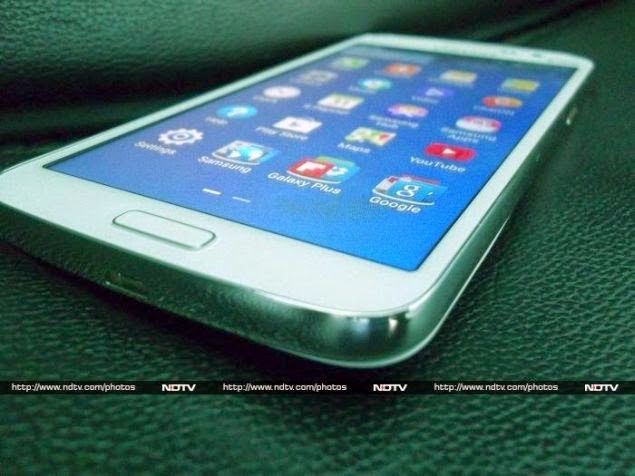
The Samsung Galaxy Ace 3 brings 4G speeds to the mid-range phone market. Its silver rim, single central home button and plain white backplate are essentially identical to numerous other Galaxy-branded handsets, but then it’s a proven formula from the best-selling smartphone maker on the planet.

Samsung Galaxy Ace 3 Display

The Galaxy Ace 3 has a 4in display with a 480x800 resolution screen. It's a little smaller, and has less detail, than even budget rivals such as the mighty Motorola Moto G. Nonetheless, its compact dimensions will certainly suit many the phone users who are resisting the move towards bigger devices. The screen itself is pretty good for a device of its class. While not boasting the best brightness of phones we’ve tested, we found its colour accuracy to be acceptable and it performed fairly well in brightly lit conditions.

Strangely, there is no auto brightness setting on the Samsung Galaxy Ace 3. This means as you move from indoor to outdoor lighting conditions, you will have to adjust the screen brightness manually by pulling down the notification tray from the top of the screen. We tried third-party apps to add this to the phone, but to no avail as there simply isn't an ambient light sensor. It's an odd, and irritating, omission for a modern smartphone at this price.

Samsung Galaxy Note Edge Review

on Tuesday, November 11, 2014
This week Apple treaded on Samsung’s territory with the release of its first phablet, the iPhone 6 Plus. Samsung pioneered the phablet category three years ago with the original Note, and now it is being forced to defend its share of the market.
The South-Korean company has hit back with two variations of its popular Note range: the evolutionary Note 4, and the innovative Note Edge. Both of these smartphones represent radical improvements over the Note 3.
Gone is the tacky feel of plastic as this series is built on a metal chassis. The Note finally feels as though Samsung has crafted it with a great sense of pride. Samsung draws attention to the material by shaving the painted metal down with chamfered edging.

Samsung Galaxy Tab S Review

The Galaxy Tab S 8.4 and Galaxy Tab S 10.5Best Price at Amazon are extremely similar tablets, just with different-sized screens and a $100 variance in price, so much of this review will be the same as our review of the 10.5. We did test both tablets separately, however.  
Physical Design and Screen
The Galaxy Tab S 8.4 has a design similar to the Samsung Galaxy S5$0.00 at Amazon, but manages to look classy rather than chintzy. A big part of it is getting rid of that ridged, chrome bezel around the edge in exchange for a more subtle band. The 8.4 comes in Titanium Bronze, which is a dark gold color, and Dazzling White, which is white. It's stunningly thin and effortlessly light—at 8.38 by 4.24 by 0.26 inches (HWD), it's thinner and lighter, Samsung would have you know, than the iPad mini 3$399.99 at Best Buy. (10.3 ounces vs. 11.6 ounces.)


The back is slightly textured, soft-touch plastic, with the same stipple effect you see on the S5; there are also two circles that Samsung's line of cases snap on to. Stereo speakers on the top and bottom edges suggest that you watch video on landscape mode; ditto for the IR emitter, which is on the right side. I'm amazed that Samsung got a microSD card slot into something this thin, but there it is.

Samsung Chromebook 2 Review

on Monday, November 3, 2014
How much would you pay for a cloud-centric computer? With its new $249 Samsung Chromebook -- a system based on the idea of doing almost everything online -- Google is hoping it's finally gotten the price right.

The new Samsung Chromebook runs Google's Chrome OS operating system. Chrome OS is all about the cloud: Instead of using locally stored programs, it relies on Web-based apps like Gmail, Google Docs and Google Drive. You can do quite a bit offline -- an important option that was missing in early versions of the software -- but the Web is definitely the platform's main focus.

Value seems to be the distinguishing feature of the new Samsung Chromebook, which is available for pre-order now and will ship next week from Amazon, Best Buy and Google's own Play Store. At $249, the new Chromebook is a full $200 cheaper than the higher-end Samsung Chromebook 550 introduced earlier this year. It's also a $100 cheaper than the first-generation Series 5 model that was released in mid-2011. (That device was removed from Google's official Chromebook site this week, leading me to believe that this new model will effectively replace it as the lower-end option.)
So what's the new Samsung Chromebook actually like to use? I've spent some time getting to know the device. Here are my impressions. 

Thin, light and sleek

Make no mistake about it: This is an attractive computer. It's 0.8-in. thick and weighs 2.5 lb., making it quite practical to carry around. The Chromebook has a silver-colored plastic design with "Samsung" and a Google Chrome logo printed on its front; the general appearance is in line with the higher-end 550 Chromebook device, not the lower-end Series 5 model from last year.

The new Chromebook boasts an 11.6-in. 1366 x 768 display. That's slightly smaller than the 12.1-in. 1280 x 800 displays on the previous Chromebook models, but at a glance, it's hard to tell much of a difference. The screen certainly isn't the most eye-catching, high-def display you've ever seen, but with its matte finish, it's easy on the eyes and perfectly suited for things like Web browsing, email and document-oriented work.
Above the display there's a webcam and microphone for online video chatting. The Chromebook has a headphone jack and SD card slot on its left side; along the back you'll find one USB 3.0 and one USB 2.0 port, an HDMI port, the power connection and a slot for a SIM card. This last appears to be nothing more than a placeholder -- Google confirmed to me that this model is Wi-Fi-only and that a 3G-capable version will launch at some point in the future.
While the device includes 16GB of local SSD storage, buyers also get 100GB of cloud-based Google Drive storage for two years -- a subscription that would cost $120 if bought outright.

Feels great to use

The Chrome OS keyboard has been a standout feature of Chromebooks from the start, and this latest model is no exception. The new Samsung Chromebook utilizes the same chiclet-style keyboard used in past devices; the keys are well spaced, responsive and a pleasure to type on. As far as I'm concerned, the Chromebook keyboard provides about the best laptop typing experience you can find today.

And like its predecessors, it's been customized with numerous keys specific to the Chrome OS environment. In place of the function keys typically present on the top row of a Windows system, for example, the Chromebook has keys for such functions as navigating forward or backward in the browser, refreshing a page, toggling between windows and adjusting the device's display brightness. In place of the caps-lock key, it has a search key that brings up a universal search box and list of available applications. (You can opt to remap the key to a more traditional caps-lock function if you want.)

The new Chromebook's trackpad is no less impressive: It's smooth and responsive, with accurate motion and support for a range of one- and two-fingered gestures. Swiping in any direction with two fingers, for instance, scrolls up, down, left or right on a page. Pressing anywhere on the trackpad with one finger left-clicks, and pressing with two performs a right-click command.

Surprisingly good performance -- to a point

When I first saw the specs of the new Samsung Chromebook, I was a bit worried about how it would perform. It has only 2GB of RAM -- the same as the first-gen Chromebook, which had a tendency to get bogged down and pokey when you had multiple tabs open or conducted any significant multitasking. (The more expensive 550 model has 4GB RAM and does not suffer from these issues.)

The new Chromebook has surprised me, though: Equipped with an ARM-based processor -- the Samsung Exynos 5 Dual, which, incidentally, is fan-free and emits no audible noise when running -- the system manages to keep up with light to moderate usage without suffering any slowdowns. It powers on in about 10 seconds; after you type in your Google account credentials, it takes just about five more seconds before you're online, in a browser and ready to work. In my tests, I was able to open numerous tabs and windows -- and navigate among them -- without any noticeable problems.

There is a limit, though. Once I had about a dozen tabs opened, I started to see some slowdowns. Switching among tabs was slower and sometimes resulted in pages refreshing for no reason (presumably because the system was running low on RAM), and scrolling through pages became noticeably more labored and difficult. The effect grew more pronounced as more tabs were introduced and seemed particularly problematic when resource-intensive Web apps, such as TweetDeck or the Pixlr photo editor, were in use.

Samsung Netbook NC108 Review

on Sunday, November 2, 2014
One thing I’d say is that Samsung netbooks NC108 are highly portable, light weight, have a great battery life and are true value for money. I’m not reviewing Samsung NC108 in detail because it’s pretty similar to Samsung N148. However, it is a new redesigned model with some improvements in specs and features.
The Samsung NC108 is crafted to deliver a stylish look, sturdy and high-quality design, despite being budget-friendly. It is ultra compact in size, weighs just 1.18Kg (less than N148) and is powered by the upgraded Intel N455 Atom processor.

It boasts a 10.1” anti-reflective display, now enjoy movies and images that are clear and picture perfect, even in bright light. Its energy efficient LED display and 6 cell battery may offer an extensive battery life of up to 10.7 hours*.
The keyboard has an ergonomic design with a slight texture, plus it is a Full Island keyboardwith optimised key spacing for easier typing that looks awesome.
The I/O ports on the left and right side carries a precision cut edge design that stands apart from others. It is cleverly styled with an integrated hinge. That means the screen blends together seamlessly with the keyboard, which makes adjusting the screen easier.
A quality webcam is integrated, that is ideal for video conferencing and video calls.

Samsung NC108 (NP-NC108-A04IN) Specifications:
  • OS: DOS
  • CPU: Intel Atom Processor N455 @ 1.66Ghz
  • LCD: 10.1" WSVGA (1024 x 600), Non-Gloss, LED Back Light Display
  • Memory: 1GB DDR3 Memory at 1066MHz
  • Chipset: Intel NM10
  • Storage: 250GB S-ATAII HDD
  • Intel Graphics Media Accelerator 3150
  • Sound: HD (High Definition) Audio with SRS 3D Sound Effect
  • Wired Ethernet LAN 10/100 LAN
  • Wireless LAN: 802.11 bg/n
  • Bluetooth v3.0 High speed
  • Integrated Web Camera
  • Connectivity ports: VGA, Headphone out, Mic-In, Internal Mic, 3 x USB 2.0 (chargeable USB included), RJ45 (LAN), DC-In (power port), Security lock
  • 4-in-1 Card reader (SD, SDHC, SDXC, MMC)
  • Battery: 6-cell
  • Weight: 1.18Kg (2.60lbs)
  • Dimension (W x D x H inch): 10.10" x 7.00" x 0.84"
Price: MRP is Rs. 14,490. Buy it online for Rs. 13,500 (including taxes)
I installed Windows 7 Professional on the NC108. Even with just 1GB RAM, it delivers a good performance that is perfect to surf the web wirelessly, watch multimedia content such as videos, photos, etc., enjoy music, chat and check the documents on the go.


Samsung NX 3000 Review

on Saturday, November 1, 2014

Introduction

The Samsung NX3000 is a new entry-level mirrorless compact system camera. The plastic-bodied NX3000 features a 20.3 megapixel APS-C CMOS sensor, 3-inch flip-up LCD screen with wink-shot mode, ISO range of 100-25,600, 1080p HD movie recording, built-in Wi-Fi and Near Field Communication (NFC) connectivity, 5fps continuous shooting, 1/4000th second top shutter speed, Sweep Panoramas and Samsung’s unique i-Function lens. The Samsung NX3000 is available in White, Black and Brown and costs £350 / $529 in a kit with the new 16-50mm f3.5-5.6 Power Zoom ED OIS lens and Adobe Photoshop Lightroom 5.

Ease of Use

The NX3000 employs the same 20.3 megapixel APS-C CMOS sensor as all the other NX-series cameras (apart from the NX Mini), which is around 1.5x physically larger than the Micro Four Thirds system and promises to rival the image quality of the majority of DSLRs, whilst still maintaining a small camera body that is very similar to the likes of the comparable Sony NEX, Olympus PEN, Fujifilm X and Panasonic G-series.
The all-plastic NX3000 does at least have a metal lens mount and tripod socket, very commendable considering its budget price-tag. First impressions of the NX3000 are positive, with satisfying build quality. Our review sample has a functional look with an attractive, slightly retro two-tone black and silver colourway and subtly rounded edges. There's a faux-leather textured area which covers the front of the camera, including the tactile curved handgrip, which sadly isn't very deep. The same leatherette finish extends around the right-hand flank and covers the small rear thumb panel too.
Measuring 117.4 x 65.9 x 39mm and weighing 230g without the battery fitted, the NX3000 is slightly smaller and lighter than the NX2000 that it replaces. Once again there's no viewfinder or built-in pop-up flash, and while beginners probably won't notice the lack of an EVF, being more used to holding a camera at arm's length than holding one up to their eye, they will undoubtedly miss having a flash, while the reverse is probably true for more experienced photographers.
Flash is instead provided for by a supplied accessory (SEF-8, guide number of 8 meters at ISO 100) which slots into the Smart Shoe on top of the camera, which adds to the bulk of the camera and isn't as well integrated as some of its main rivals. Another accessory is the EM10 external microphone, which features adjustable levels, a built-in headphone jack and no external cabling and is commendably compatible with all the Samsung NX models, including the NX3000. Note that there is no external EVF option for the NX3000.

We tested the NX3000 with the new Samsung 16-50mm f3.5-5.6 Power Zoom ED OIS lens, which has the built-in i-Functionality, a metal mount and more crucially optical stabilisation, important as the NX system doesn't offer in-body stabilisation. It's also smaller and more compact than the 20-50mm kit lens that shipped with the NX2000. Samsung's now standard i-Function button is present and correct, an innocuous looking button on the lens barrel which when pressed activates a sub-menu of key options and allows you to change them simply by turning the focus ring. Consecutive presses of the i-Function button moves through the four available settings - shutter speed and/or aperture, ISO, exposure compensation, and white balance.
While the i-Function button does provide a quick way of accessing certain key settings, we still can't help feeling that the idea is best suited to a camera with an electronic viewfinder where you can hold it up to your eye, press the button and turn the focus ring with your left hand, and grip the camera with your right. Holding the NX3000 at arm's length to view the settings while pressing the i-Function button and rotating the focus ring just seems a little cumbersome, especially when you can also use the rear controls to perform the same actions, something that we found ourselves doing by default.
Protruding metal neck strap eyelets are located on the NX3000 at the sides, with the rear dominated by the new flip-up 3 inch LCD screen. The left side of the body is devoid of any controls, while on the right is a plastic cover that houses a HDMI port for connecting the NX3000 to a HD television or monitor and a USB port. The latter port can be used as a remote socket for use with the SR2NX02 remote shutter release.
On the front of the Samsung NX3000 is a small focus-assist and self-timer indicator lamp, lens release button, and the metal NX lens mount. Located on the bottom of the camera is the shared MicroSD / MicroSDHC / MicroSDXC memory card slot and battery compartment, protected by a plastic lockable cover. The BP740AE (1130mAh) battery provides up to 370 shots under the CIPA testing standard. Also found on the bottom of the camera is a metal tripod mount which is located in-line with the centre of the lens.
The NX3000 uses the same built-in dust-removal system as the original NX100 and NX10 models, which vibrates the sensor 60,000 times per second to remove any unwanted specks from appearing in your images. By default this feature is turned off, something of an oversight by Samsung, so make sure to enable it so that it works every time you start-up the camera (it only takes about one second). You can also perform a manual sensor clean at any point.

The NX3000 has a so-called Smart Shoe that will accept compatible Samsung flashguns and other accessories. Also found on top of the NX3000 are two holes for the stereo sound and one for the speaker, a tactile shutter button, small on/off switch, and the Mobile button, which can be configured to quickly access one of the Wi-fi modes.
Completing the top of the NX3000 is a traditional shooting mode dial The usual selection of Program, Aperture Priority, Shutter Priority, and Manual are available for the more experienced photographers in the Expert mode, and the more beginner-friendly Smart Auto and Smart Scene modes, plus the Wi-fi menu (more on this later).
Smart Auto is Samsung's equivalent of the intelligent auto modes now found on most competitors models. You simply point the NX3000 at a scene or subject and the camera hopefully recognizes it from commonly used presets and automatically adjusts its settings to deliver optimum results. This means that it's not necessary for the user to manually delve into scene modes to call up the likes of 'landscape' or 'flower', essentially making the NX3000's operation merely a case of point and shoot.
In practice the Smart Auto system works very well, with the NX3000 usually picking the most appropriate combination of settings for the current situation. Obviously not all situations are covered by the scene modes that the system uses, but it does work for the majority of the time. It makes it possible for the less experienced photographer to easily take well-exposed, sharp pictures of people, scenery and close-ups by simply pointing and shooting the camera and is more intuitive than the traditional scene modes (which are still available).
The NX3000 can record high-resolution Full HD 1080p 1920x1080 and 720p 1280x720 movies in the 16:9 aspect ratio and standard VGA 640x480 or 320x260 movies in the 4:3 aspect ratio, all using the H.264 format at 30/25 frames per second. The Movie mode is accessed via the dedicated one-touch record button on the rear of the camera. Stereo sound is recorded during video capture via the small internal mics on top of of the camera. The HDMI port allows you to connect the NX3000 to a high-def TV set, but unfortunately Samsung have decided to cut costs and not include a HDMI cable as standard in the box, which means that you'll have to purchase one separately to take advantage of this camera's HD connectivity.
You can shoot movies using any of the creative modes, giving you lots of control over exposure, and you can also change the aperture and shutter speed during recording, albeit at the expense of recording the mechanism on the soundtrack. The NX3000 offers the ability to set the white balance, metering and use any of the Picture Wizard settings during video recording as well as still images, which instantly lends an interesting art-house effect to your home movies. You can set a video to be played back at various slower or faster speeds (x0.25, x1, x5, x10, x20), the self-timer and image stabilizer can be used, a fade-in or out can be set, and a voice clip can be added.
You can also use a zoom lens during recording with the focusing set as for still images by half-pressing the shutter button. On the negative side, you'll find that if you choose continuous auto-focus, areas of the video will be blurred before becoming sharp again as the camera tries to refocus. Using manual focus is trickier but will ultimately produce better looking and sounding movies. On a more positive note, having the AF system is better than not being able to auto-focus at all, as with some DSLR cameras that offer video recording.
Completing the NX3000's shooting modes is the Wi-Fi mode. The NX3000 offers built-in Wi-Fi, with an array of options available. Users can email their images, upload them directly to Facebook, Picasa, Photobucket and YouTube, or instantly copy them to a home PC via Auto Backup. GroupShare connects the camera to multiple smartphones, while MobileLink allows you to directly send images to a compatible smartphone or tablet and Remote Viewfinder utilises a smartphone as a live image previewer. Home Monitor essentially allows you to use the camera as a baby monitor or security device by pairing it with a smartphone, while Samsung Link allows you to copy your photos to Samsung's cloud service.
On the left of the body is the NFC logo. The NX3000 is the latest compact system cameras to feature NFC (Near Field Communication) technology (the same technology that's used for mobile payments), which allows you to connect the camera to a compatible internet enabled device or another NFC enabled camera by simply tapping them together.
Turning to the rear of the NX3000, we find a 3-inch, 460k dot LCD screen, one of the main differences between the NX3000 and the NX2000, which had a much larger, higher-res screen with a touchscreen interface. One plus point in the NX3000's favour is that the screen can be flipped-forwards through 180 degrees to make the ubiquitous selfie even easier to take, especially as you only have to wink at the camera to trip the shutter! You can also cleverly turn the camera on by simply flipping the screen up.
Instead of a touchscreen, the NX3000 uses a suite of physical controls located to the right of its screen. In addition to the one-touch movie record button, there are Menu and Function buttons which above a traditional navigation pad, which can also be spun left and right to select the aperture/shutter speed and other operations. Underneath that is a Playback button and a Custom/Delete button.
The main menu system on the NX3000 is very straight-forward to use. There are four main menus - Camera, Movie, Custom, Settings - presented as a row of horizontal icons, and due to the large LCD screen and restricting the number of on-screen choices to five, the various options and icons are clear and legible. If you have never used a digital camera before, or you're upgrading from a more basic model, reading the easy-to-follow manual before you start is a good idea. Unfortunately Samsung have chosen not to supply it in printed format, so you can't carry it with you for easy reference.
The Function menu provides quick and easy access to virtually all of the most important camera settings (12 in total) via the very useful Smart Panel. This is an intuitive graphical interface that allows you to move around and choose the main camera settings via a combination of the LCD screen and the navigation wheel.
Unlike a conventional DSLR camera which uses a phase detection auto-focus system, the NX3000 employs the same Contrast AF system that is commonly used by compact cameras. Thankfully this decision hasn't resulted in a slow and unpredictable AF - quite the contrary in fact. The Samsung NX3000's focusing speed is on a par with most DSLRs, with an autofocus algorithm that delivers precise autofocusing in as little as 100ms. As well as the out-and-out speed, there were also very few occasions when the NX3000 failed to lock onto the subject, especially when using the centre AF point, which can be usefully set to one of four different sizes.
There are three AF Area modes on offer, including Selection AF with a selectable focus area, Multi AF, and Tracking AF, with Single, Continuous and Manual AF Modes available. Manual focusing is assisted by the 'enlarged display' function. Once you have selected manual focus mode, the zoom ring on the lens barrel automatically changes to control the focusing distance, with the +/- zoom buttons setting the focal distance. Turning the manual focus ring then automatically increases the magnification on the LCD display, which is a big help in getting the focus spot on. This is real, non-interpolated magnification, very useful for accurate manual focusing - provided you find a way to steady the camera. The screen cleverly returns to normal magnification when you stop using the manual focus ring for a few seconds.
Metering options include Multi, Center-weighted and Spot, while the ISO range runs from 100-25,600. There are 7 white balance presets plus Auto and Custom settings and the ability to set a precise Kelvin value, and if you can't make up your mind the white balance, exposure and even the Picture Wizard settings can all be bracketed.
The start-up time from turning the NX3000 on to being ready to take a photo is impressively quick at around one second. It takes about 1 second to store a single full-resolution JPEG image, allowing you to keep shooting as they are being recorded onto the memory card, with a brief blackout between each image. Storing a single RAW image takes around 3 seconds, and it doesn't lock up the camera while the file is being written to memory.
The Samsung NX3000 has a good Burst mode which enables you to take 5 frames per second for both JPEG and RAW images, but be prepared to wait for quite a long time for the camera to process all the images. There's also a special Burst mode that records 30 frames per second, albeit only at 5 megapixel JPEG resolution, with slower 15 and 10fps options also available.
Once you have captured a photo the Samsung NX3000 has a fairly good range of options when it comes to playing, reviewing and managing your images. You can instantly scroll through the images that you have taken, view thumbnails (up to 40 onscreen at the same time), zoom in and out up to 14.2x magnification, view slideshows, delete and protect an image and set the print order. The Image Edit option offers a number of different ways to alter the look of an already-captured photo, including redeye fix, backlight, changing the photo style, resizing, rotating, face retouch and apply smart filters. The DISP button toggles detailed settings information about each picture on and off, such as the ISO rating and aperture / shutter speed, and there are small RGBY histograms available.

Samsung Grand II Review

on Wednesday, October 29, 2014

Introduction

The Samsung Galaxy Grand was the big-screened Samsung phone for the masses last season - and one that conveniently offered an extra SIM slot. It didn't go as far as the Galaxy Mega pair, stopping instead at 5-inches sharp of screen diagonal. This year, the Galaxy Grand 2 needs to be better in every way to get the attention of those who like their phones with big screens and decent price tags.
And, by the looks of it, it does - only topped by the latest flagships in our popularity chart. The Grand 2 improves on every bit that counts. It comes with a bigger 5.25" display without adding too much body fat - this year's model is just slightly taller. The bezels have been slimmed down and the resolution has gone up from WVGA (480 x 800) to 720p, resulting in a pixel density of the much more pleasing 280ppi (over 187ppi in the original).
The design has been greatly improved as well: in comes the faux stitched leather at the back, out with the gloss of the older generation. The camera remains the same but processing is more robust, ditching the Broadcom dual-core Cortex-A9 CPU for a quad-core Cortex-A7 made by Qualcomm.

Galaxy Tab 4 Nook Reviews

on Thursday, October 23, 2014
It’s been just over a week since Barnes & Noble launched their latest tablet, and the reviews are trickling in.
Unfortunately for both B&N and for potential buyers, there weren’t very many blogs interested in writing a review for this tablet. I only found 5 actual reviews (not counting the fake review posted by Publishers Weekly), which is far fewer than thedozen reviews I found for the Fire Phone.
In general, the reviewers were less than impressed with this tablet. In fact, the only truly positive verdict I found was penned by my competitor when he reviewed the non-Nook version of the Galaxy Tab 4 a few months ago.

Samsung Galaxy Mega 6.3 Review

on Wednesday, October 22, 2014
One Giant Smartphone for Mankind

Godzilla, Frankenstein's monster and Bigfoot are mythical creatures that don't exist (although you might dispute the latter). But now, an equally beastly smartphone -- one seemingly designed specifically for them -- is available to buy. The Samsung Galaxy Mega is a 6.3-inch woolly mammoth of a handset, and it reigns as the largest of its kind, even if only for a brief period of time; the title will soon be taken over by the Sony Xperia ZU once it hits the market. We were curious to see how a phone of its size would hold out during regular use, so our friends at Negri Electronics -- an online retailer which currently sells the Mega for $570 or $600 (8GB and 16GB, respectively) -- were kind enough to let us take one for a test drive for a few days. Is the phone's magnitude a benefit or hindrance to the user experience? Is it even worth considering if you don't need the largest possible screen? Find out as we dissect it after the break.


If this review taught us nothing else, we at least discovered that the Mega makes for an amazing icebreaker in elevators, parties and anywhere else. The odds of hearing "Wow, that thing's a phone?" were, expectedly, incredibly high. Of course, novelty isn't typically a factor we consider when reviewing a phone, nor should it be; perhaps a few folks may think of this as an opportunity to cure their shyness, but we believe it's far more important to judge a smartphone by its actual merits rather than perceived social implications.

Samsung Galaxy S5 Review

on Tuesday, October 14, 2014
You know what you’re getting with the Samsung Galaxy S5 before you even unbox it, because this is a 2014 superphone. Big, bright screen. Oodles of power. Brilliant camera. 
We’d expect every one of the big smartphone players to get those bits right on their flagships – after all, they’ve been refining these models for years. 

From now on it’ll be the little details that separate the best-in-class from the also-rans; those seemingly trivial aspects of everyday usability that make the difference between a phone that’s lovely to live with and one that’s merely a tool. Galaxy smartphones are known for going big: on screens, specs, software tricks and, of course, sales. The S5 is no exception, but the small stuff can be just as exciting as the headline features, and that’s what the S5 will need to get right if it’s to become the very best. If there’s one obvious way that Samsung still falls behind its rivals, it’s industrial design. The Galaxy S4’s clammy, all-plastic build didn’t feel particularly nice to hold - the kind of smartphone you really don’t mind putting a case on. 
While the S5 is instantly recognisable as a Galaxy, Samsung has tweaked the design by adding a dimpled polycarbonate (still removable) back panel to give your fingers something to adhere to. In that regard it works. This is a big, wide phone but that new texture combines with Note 3-style metal-look ridges to make this the grippiest Galaxy yet. It’s just as light as the S4 (OK, 15g heavier) and is also more solidly built that its predecessor, which was prone to the odd creak. Improving on the S4 isn’t enough, though. Next to the impressively engineered LG G2 the S5 looks a generation behind, with wider bezels on the front and a larger overall handprint. The G2 simply has a better screen-to-size ratio. 
Second, how a phone feels when you grab it 100 times a day is half the battle. The “Modern Glam” back panel still doesn’t look the part of a £600 smartphone. Perhaps it’s exactly the sort of styling Samsung’s hordes of fans are after, but to our eyes this is a long way from the sophisticated curves of the HTC One M8. We’re not saying “go metal or go home” (the Nexus 5 is a prime example of understated polycarbonate perfection) and ditching the fake stitching of the Note 3 is a good decision, but Samsung needs to think classier. 

 Third, while the S5 feels solid enough, crank up the volume when watching a movie in bed and you can hear the rear speaker vibrating the S5’s back panel fairly vigorously. That’s not something you’d expect from a flagship such as this. In short, we’re not enamoured by the S5’s aesthetics, but perhaps there are those out there who will be. Besides, Samsung’s form has function - IP67 waterproofing. Just make sure the back panel and port covers are properly fitted. No-one wants a soggy battery. UPDATE: Samsung has sent us over a Charcoal Black model and we're much more taken with it than our original Shimmery White unit. 
Our design criticisms still stand but this is definitely the model we'd go for - we're yet to eye up Electric Blue and Copper Gold. Fortunately the screen will more than distract you from the S5's divisive aesthetics. At 5.1in, it’s only just bigger than the S4’s - but it’s now a dazzling Super AMOLED display. It’s still full HD resolution, so there's a slight drop to 432ppi from the S4’s 441ppi, but you really won’t notice. What you will notice is how bright it is, how easy it is to read outdoors and how vibrant the colours are. And to combat criticism over alien hues, Samsung’s adapt display setting automatically switches screen mode depending on what you’re doing - Dynamic mode to make home and lockscreens really pop, and Cinema mode for a natural palette for movies. It’s the smartphone screen equivalent of having your cake and eating it. 

 We were obviously excited when the (ultimately unfounded) rumours of a 2K screen surfaced, but while that’s not what we’ve ended up with this is plenty sharp and there are excellent viewing angles. It’s not quite the very best - the LG G2 offers a larger screen, crisper picture and slightly better contrast in a smaller body. But the S5’s display is still an absolute stunner. For a start, the autofocus is seriously quick. Samsung reckons it’s as fast as up to 0.3s; we can’t count that quickly, but we do know it’s one of the nippiest we’ve seen on a phone. The 16MP sensor captures accurate colours, good contrast and masses of detail when used outdoors in good light, so it’s a superb ad-hoc tourist cam. Its improved HDR mode is one of the best we’ve used, too - it’s lightning quick and the results in tricky light are close to magic. But indoors it’s only so-so, and in low light it’s comfortably beaten by the night vision of the HTC One (M8) and the LG G2. Colours stay accurate but images look too grainy to be usable. Zooming in on landscape shots? Yes, go for it (after all, it's not something you can do very effectively on the 4MP One (M8)). 
Your mate’s face in a dimly lit restaurant? Not so hot. Selective focus - Samsung’s version of the Lytro-like tech so in vogue right now - offers near focus, far focus and pan focus after you’ve taken the shot. The subject closest to you has to be 50cm or nearer and, unlike on the HTC, the mode has to be selected before you start snapping. But even though it’s software-based, with no extra sensors, it works fairly well and is a cool feature that’s a cut above the slightly gimicky software tricks Samsung has been guilty of in the past. 
The camera app itself has been simplified, too, with one big boo-boo: Samsung’s ditched its night mode altogether. For low light shots Samsung suggests its new Picture Stabilisation mode, but this is hidden as a toggle in the phone’s main settings. After Auto, this is probably the most used setting, so having to jump through hoops to get to it is a misstep. 

 As for video, the S5 joins the Note 3 in the 4K club - footage is smooth and looks as crisp as the screen you’re viewing it on will allow. In most cases, the excellent full HD footage will do. With so much going on, the S5 needs order. And this is easily the most user friendly version of Android yet to grace a Galaxy. TouchWiz, as it's known, has never had many fans. Big features such as running two apps side by side with Multi Window are useful, but there’s always been a little too much confusion and clutter to it. On the S5 it’s different. It’s not quite as painstakingly crafted as iOS yet and we’re sure an S5 Google Edition (with vanilla Android KitKat) will sell well. But it is now on the road to brilliance. 
Tweaked icons look simple and fresh and core apps such as the S Planner calendar have been overhauled to look clean and calming next to their hectic S4 counterparts. Where once we’d unbox a smartphone already bloated with extra apps, Samsung downloads and free subscriptions are now tidied away in the the Galaxy Essentials and Galaxy Gifts widgets - it’s then up to you which you install and which you ignore. 

 The big addition is My Magazine, a stream of images and links to news that’s powered by Flipboard and sits to the left of the main homescreen. HTC’s BlinkFeed is slightly more useful - it shows specific RSS feeds and calendar appointments - but Samsung’s app is an equally lively way to jump into the morning’s news. Again, Samsung is learning to be less pushy - My Magazine can be killed in the settings. 
 Using the S5 can still feel overwhelming at times, mind you. The settings menu is somewhat over-stocked with options, to the extent that we gave up scrolling the icons and used the search tool. All the familiar Samsung innovations are here if you want them, including last year’s motion gestures (eye tracking, touchless scrolling, etc) neatly tucked away in their own section. It’s worth noting that none of these are as useful and intuitive day-to-day as the One (M8)’s swipe- and tap-to-unlock gestures.